
Once you've connected Podbase to Order Desk, you can fine-tune how your orders are handled, shipped, and organized all from within Order Desk. If you haven't connected yet, start here first: → How do I connect Podbase to Order Desk?
Integration Settings
After connecting, head to the Order Desk integration page in Podbase to set your preferences:
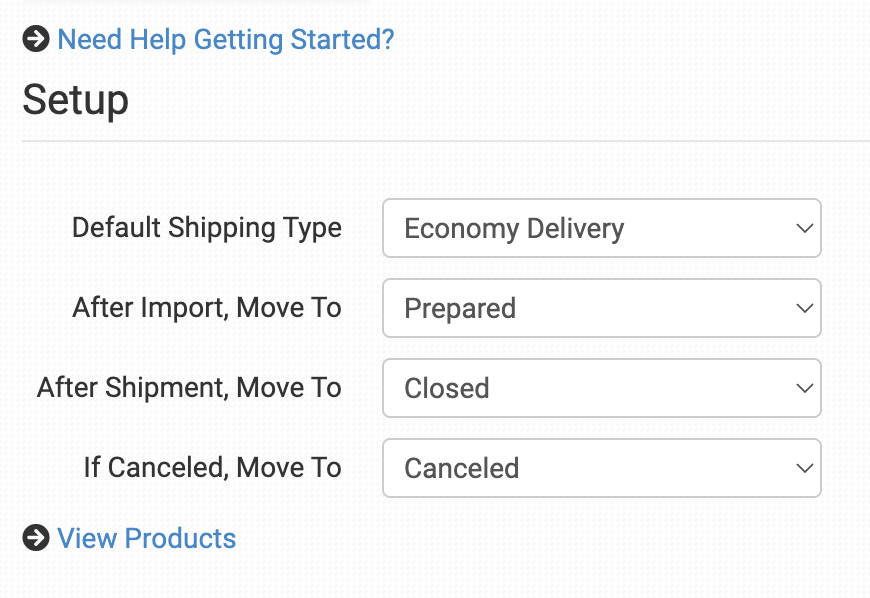
Default Shipping Type: Select your preferred default shipping class. This is used for any orders where the shipping method doesn't exactly match one of Podbase's shipping method names or hasn't been mapped yet.
📌 If you need specific methods for certain orders, use the Shipping Class Match section to map your method names to Podbase's.
After Import, Move To Select the folder orders are moved into after they've been sent to Podbase. If you want to use a custom folder, create one from Store Settings first.
After Shipment, Move To Select the folder orders are moved into when Podbase sends shipment details back to the Order Desk.
If canceled, Move To Select the folder orders are moved into if a cancellation happens in Podbase.
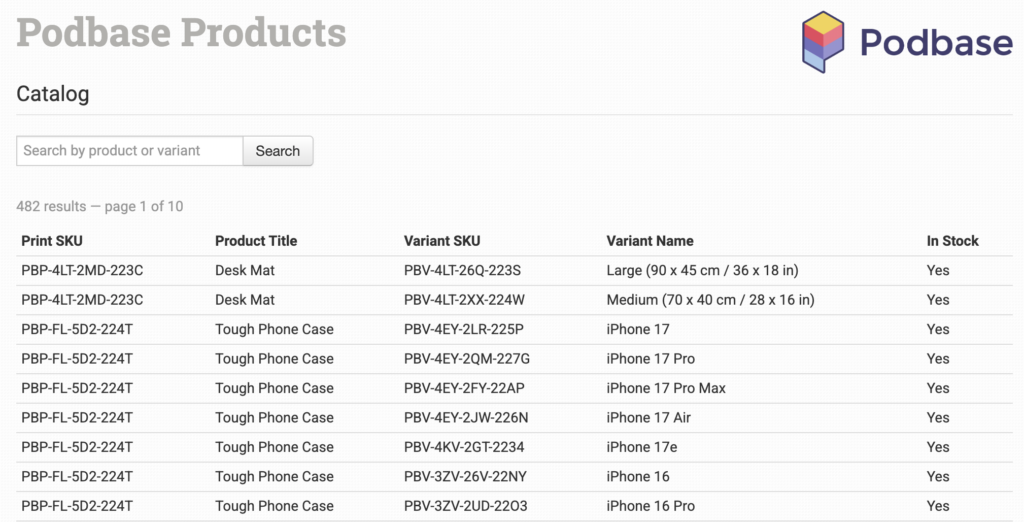
View Products Links you to a page showing all available Podbase products, where you can find your print_sku and variant_sku Both are required when sending orders to Podbase.
Preparing Your Items
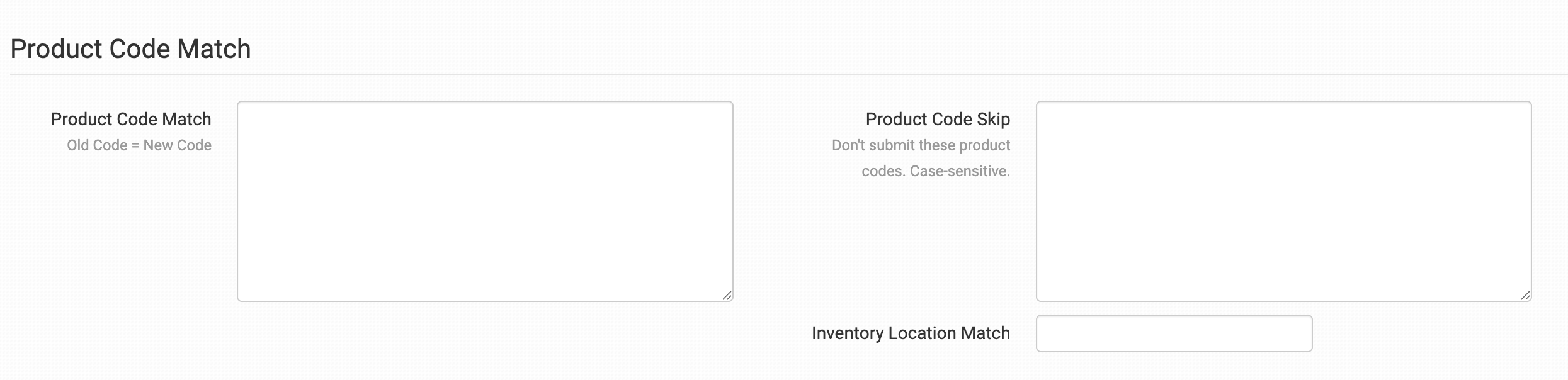
Each order item needs the following fields set as variations or item metadata so Podbase knows exactly what to print:
| Field | Description |
|---|---|
print_sku |
The SKU of the blank item to print on |
variant_sku |
The SKU of the specific variant to print on |
print_url |
A publicly accessible link to the artwork file |
📌 For a full walkthrough of sending orders through Order Desk, refer to the Print on Demand Fulfillment guide.
Shipping Class Match

Your shopping cart's shipping method names may not match Podbase's exactly. Use the Shipping Class Match feature to map them correctly. If a method name doesn't match, your default shipping type will be used as a fallback.
→ How do I set up Shipping Class Match?
Rules Reference
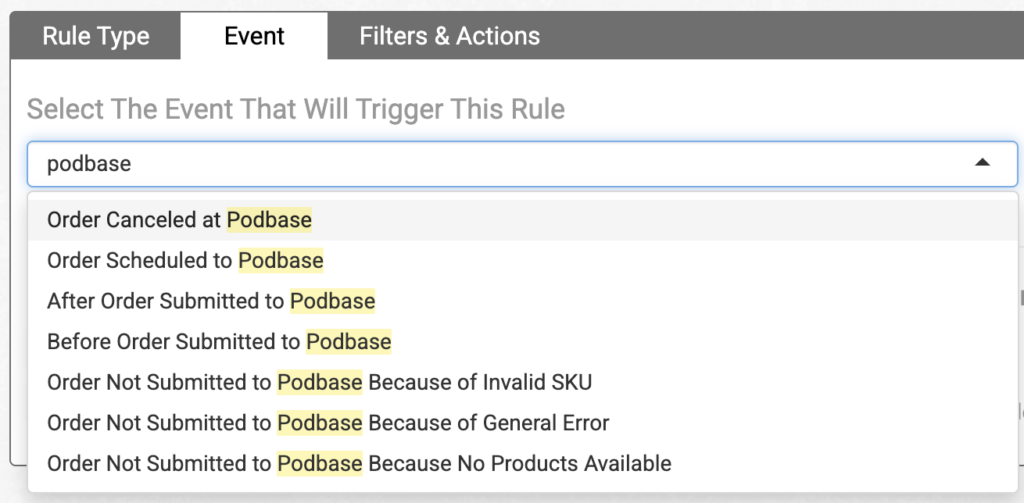
Order Desk's Rule Builder includes Podbase-specific events and actions for more control over your order flow. Type Podbase in the Event or Actions dropdown to find them.
Rule Events
| Event | Description |
|---|---|
| Order Scheduled to Podbase | Triggered immediately when an order is scheduled to be sent to Podbase |
| Before Order Submitted to Podbase | Triggered just before an order is sent — useful for last-minute updates |
| After Order Submitted to Podbase | Triggered after an order has been successfully submitted |
| Order Not Submitted — Invalid SKU | Triggered when submission fails due to one or more invalid SKUs |
| Order Not Submitted — General Error | Triggered when a general error prevents submission |
| Order Not Submitted — No Products Available | Triggered when no valid products were found for submission |
Rule Actions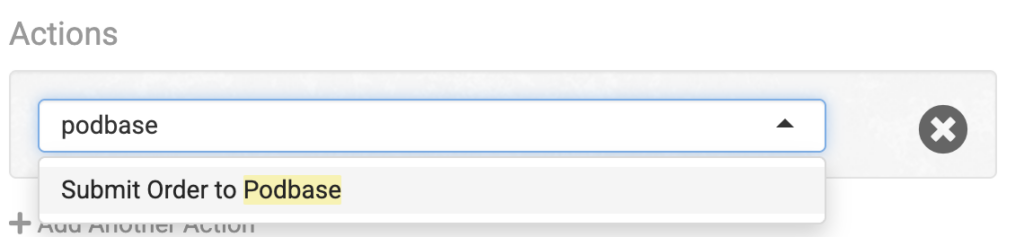
| Action | Description |
|---|---|
| Submit Order to Podbase | Sends an order from Order Desk to Podbase |
📌 New to rules in Order Desk? Start with their How to Work With Rules guide before setting these up.
Still have questions? Reach out to us at support@podbase.com .We're happy to help!
Comments
0 comments
Please sign in to leave a comment.